Last updated: June 6, 2026. Running a laser engraver requires more than just high-quality hardware; your computer must be capable of processing complex vector files and running software like Lightburn or xTool Creative Space smoothly. This guide explains the best laptops and PC specs for a productive Laser Design workflow, helping you avoid lag and optimize file processing speeds.
In Summary
A high-performance Laser Design computer requires a fast multi-core processor, a minimum of 16GB RAM, and a fast solid-state drive (SSD). While integrated graphics can handle basic jobs, investing in a dedicated graphics card and a clear, high-resolution monitor will improve file rendering times and make vector editing much easier.

Understanding the Demands of Laser Design Software
Laser control software functions differently than standard photo editors because it handles both high-resolution raster engraving maps and complex mathematical vector nodes. When your computer sends design instructions to your laser cutter, it must calculate precise speed, power, and movement coordinates in real-time. If your hardware lacks adequate processing power, you will experience lag during file imports, rendering errors, or communication drops during a live job.
CPU Requirements: The Core of Vector Processing
The central processing unit (CPU) is the most critical component for vector-based workflows. Since vector calculations are highly dependent on single-core speed, look for processors with high clock speeds rather than just high core counts. An Intel Core i5 or AMD Ryzen 5 is the recommended baseline for entry-level work. For complex multi-layered engravings, upgrading to an Intel Core i7 or AMD Ryzen 7 will prevent freezing and improve processing times.
RAM Allocation: Managing Multi-Layered Laser Files
Random-access memory (RAM) holds active design files and operating assets. If your system runs out of RAM, it will use virtual memory on your hard drive, which drastically slows down performance. While 8GB of RAM can run basic software, 16GB is the recommended standard for multi-tasking. If you regularly edit high-density photo engravings or keep multiple design apps open simultaneously, installing 32GB of RAM ensures a lag-free experience.
GPU Selection: Do You Need a Dedicated Graphics Card?
Most laser control software relies on the CPU for calculations, which means integrated graphics can handle basic layout designs. However, if you use design tools like Adobe Illustrator, CorelDRAW, or Inkscape for 3D modeling and rendering, a dedicated graphics card (GPU) becomes necessary. A mid-range card like the NVIDIA GeForce GTX 1650 or RTX 3050 provides a significant boost to vector rendering speeds and makes editing smooth.
Storage Solutions: Choosing SSDs for Fast File Retrieval
Traditional hard drives (HDDs) are too slow for modern design workflows. Always choose a solid-state drive (SSD) as your primary boot drive. SSDs load design software, import massive image files, and save projects much faster than old drives. A 512GB NVMe SSD is the minimum recommended size to store your operating system, software, and active design templates. Keep a separate external drive for archiving old projects to save space.
Recommended Laptop Specs for Portable Design Work
For creators who need portability, a design-capable laptop is the best choice. Look for laptops with a high-quality IPS display to ensure accurate color representation and clear vector lines. A laptop equipped with an Intel Core i7 processor, 16GB RAM, a 512GB SSD, and a dedicated GPU will run all design software without issue. Keep thermal cooling specs in mind, as thin laptops can throttle performance under heavy loads.
Recommended Desktop PC Specs for Studio Environments
If you work in a fixed studio space, a desktop PC offers better performance, easier upgrades, and more cooling stability than a laptop. A desktop setup allows you to connect multiple large monitors, which is highly beneficial for managing complex designs and machine control windows at the same time. A desktop with an Intel Core i7 or Ryzen 7, 32GB RAM, 1TB NVMe SSD, and an RTX series GPU provides maximum processing power for heavy workflows.
Operating System Compatibility: Windows vs macOS
Both Windows and macOS are fully compatible with popular laser design and control software. Windows is the most common operating system in the manufacturing space, offering broad driver compatibility for older laser controllers. On the other hand, macOS is highly favored by designers for its display color accuracy and display responsiveness. Choose the operating system that fits your existing workflow, but verify that your specific laser model has compatible drivers.
Optimizing Computer Performance for Vector Software
To keep your design workstation running smoothly, close unnecessary background apps before starting a laser project. Keep your graphics card drivers and laser software updated to ensure maximum stability. Additionally, configure your software's autosave settings to write to your fast SSD rather than a slow cloud storage folder. Regular system cleanups and organizing your project files will prevent lag and keep your workflow efficient.
Internal Resources and Design Guides
To compare different software options, check out our guide on xTool Creative Space vs Lightburn. For machine speed and power settings, read the xTool Materials Guide. For hardware buying strategies, see the xTool Promo Codes 2026 post and the xTool F2 Ultra Review. For general updates, visit our homepage Engilover e-commerce resources.
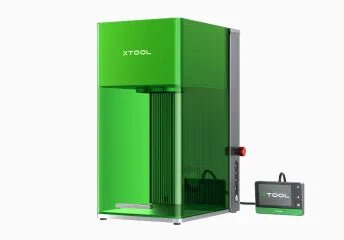
CTA 1: Find Active Hardware Deals
Looking to upgrade your design setup? Check active hardware and computer discounts before buying.
CTA 2: Compare Laser Engraver Coupons
Find active discount codes and promotions for laser engravers and materials on CouponPopper.
FAQ
Can I run laser software on a budget laptop?
Yes, you can run basic software on a budget laptop, but processing complex vector files or importing large images will cause lag and slowdowns.
Is 8GB of RAM enough for Lightburn?
Yes, 8GB is enough to run Lightburn, but 16GB is highly recommended if you keep other design programs like Illustrator or Photoshop open.
Does laser design require a dedicated graphics card?
No, a dedicated graphics card is not required to run laser software, but it significantly improves performance in vector design programs.
Should I choose Windows or Mac for laser design?
Both operating systems work well. Windows offers broader driver support, while Mac displays provide excellent color accuracy for design.
Final Takeaway
Investing in the right computer specs for your Laser Design workflow prevents lag and saves time. Focus on CPU speed, RAM capacity, and a fast SSD to ensure a productive workspace.